Focus with Things
A short list of what you are doing now, and a timer for the time, not for one task.
Step 1
Turn On Things
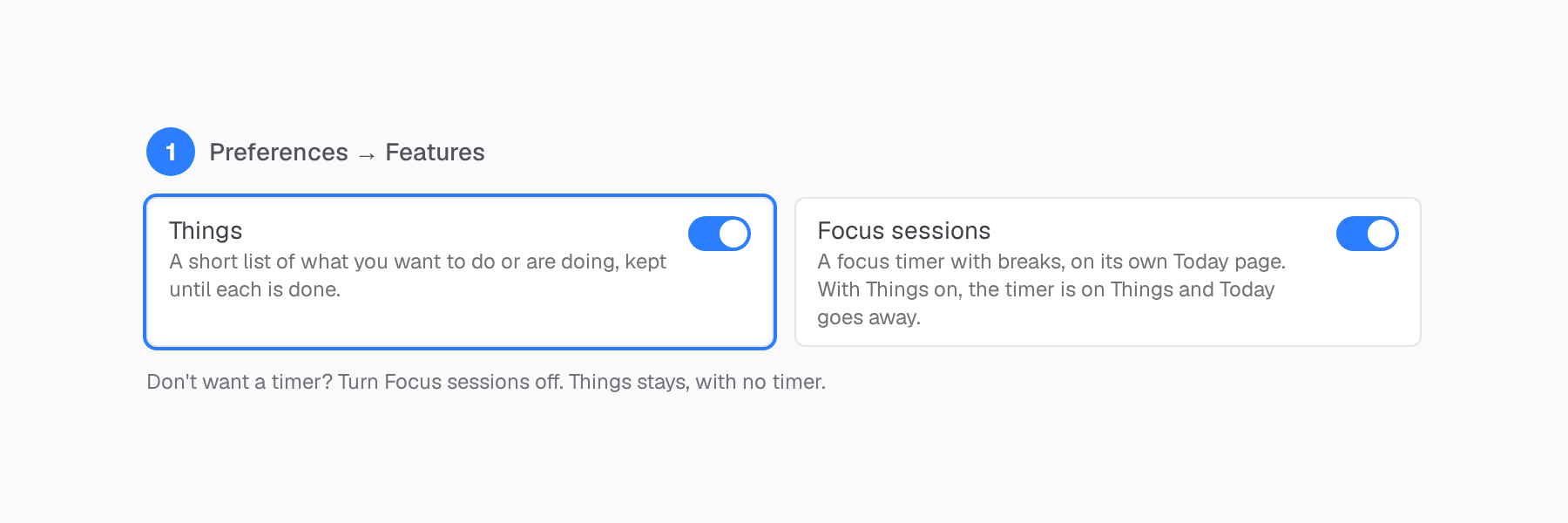
Things is off in a new account. Choose it in onboarding, or later in Preferences.
Turn on Things
Open Preferences → Features and turn on Things. Keep Focus sessions on if you want the timer: it moves to the top of Things, and the Today page goes away.
Add a few things
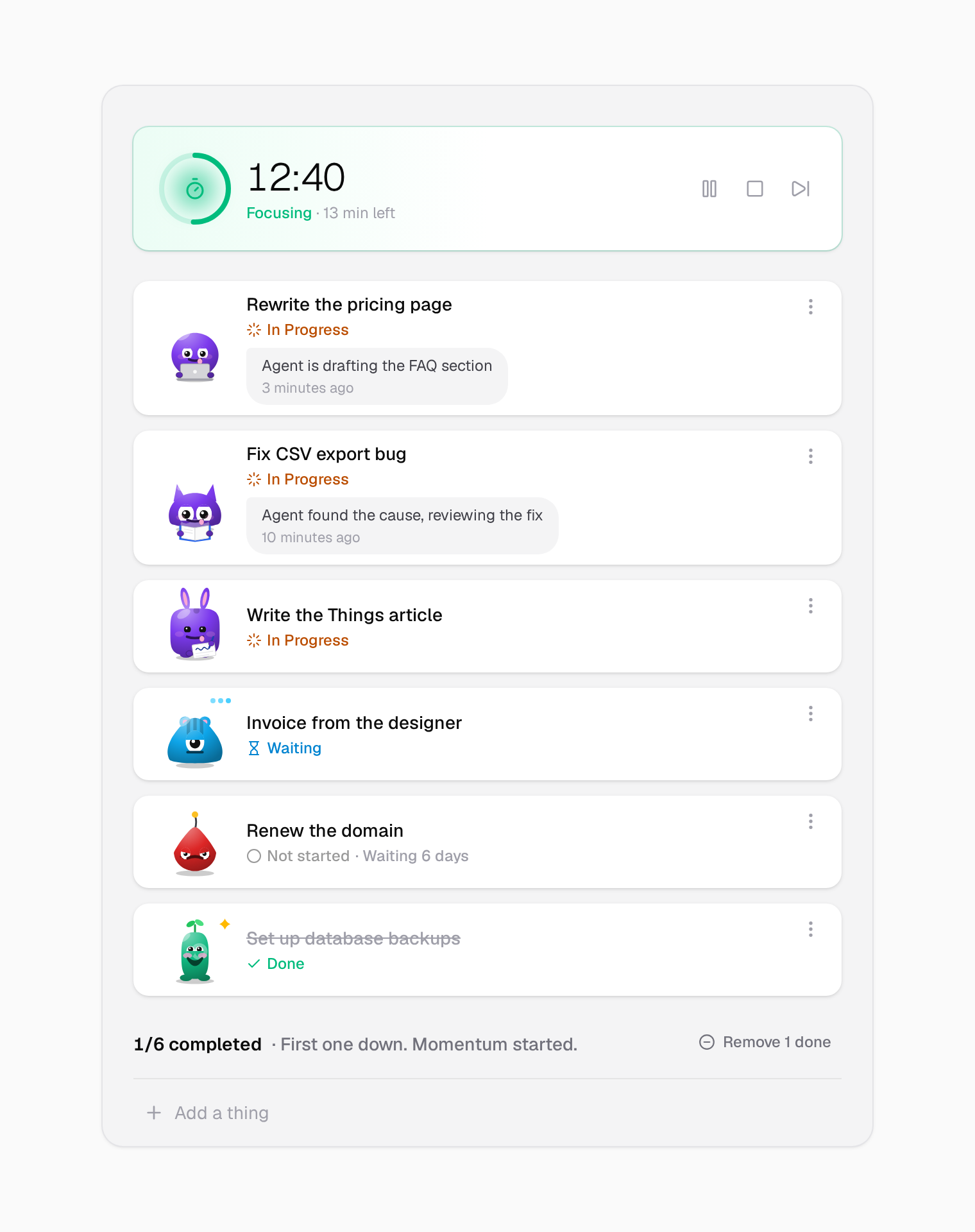
Type in the bar at the bottom and press Enter. Add only what you want to do or are doing now. Drag to change the order.
Step 2
Work Through the List
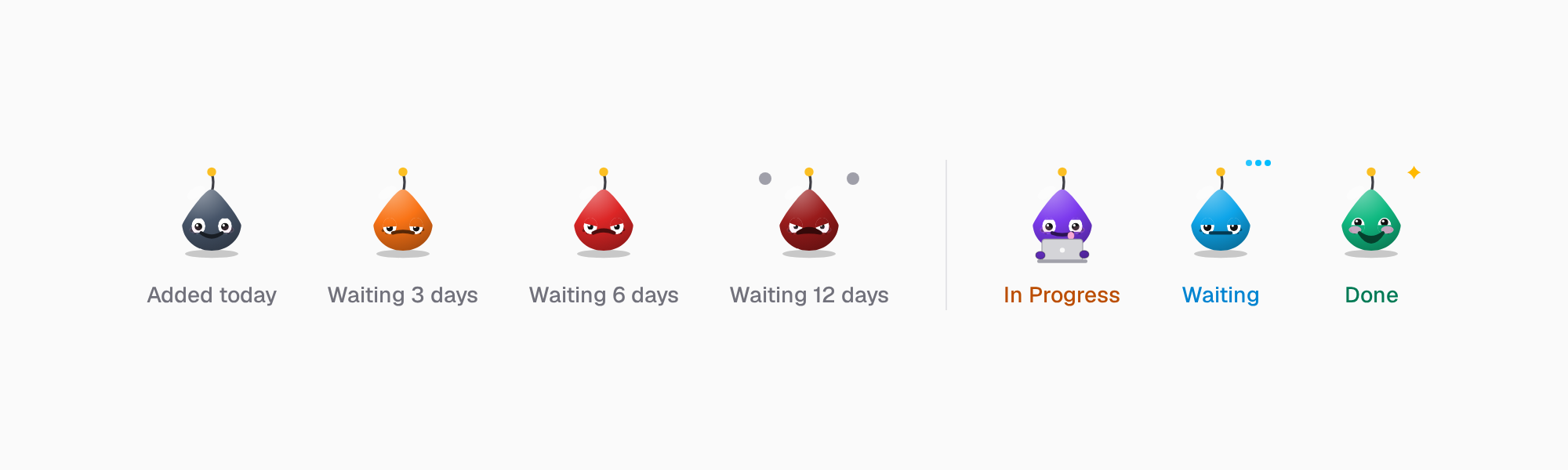
Every thing has a face that shows how it is doing.
Read the faces
A thing you leave for days gets annoyed, then angry, then furious. Start it, or remove it. Waiting on someone else? Set it to Waiting, and it waits patiently.
Start a focus session
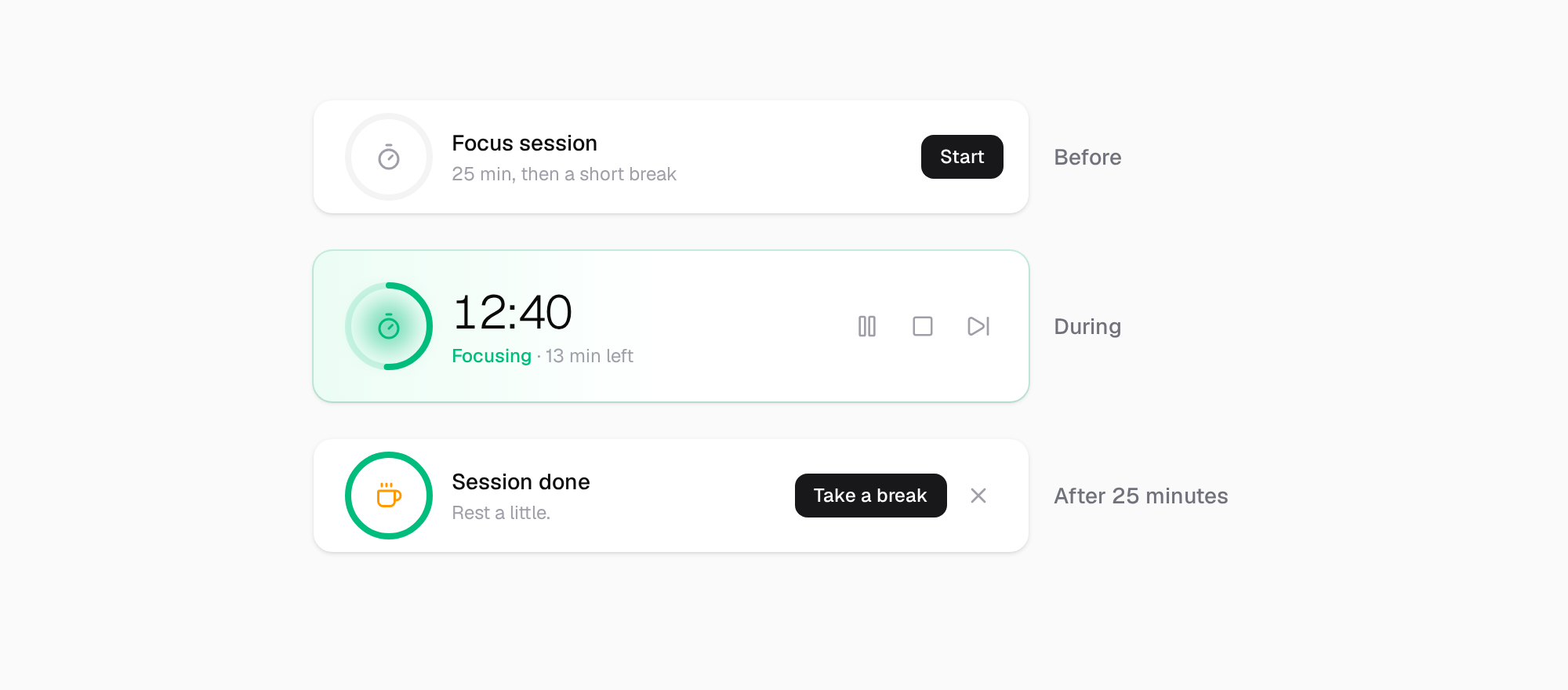
Click Start on the timer row, and work on whatever is on the list. When the session ends, it offers a break.
Write a status update
Click the chat icon on a thing and write one line about where it is. The newest line shows under the title.
Step 3
Clear What Is Done
Done things stay on the list, struck through, so you see what you finished.
Remove done
Click Remove done to clear them. The list stays short.
Other paths
Focus with Today
The classic way: plan the day, then work through it in focus sessions.
See the stepsKeep a Habit
A little bot reminds you, and gets upset when you skip.
See the stepsReach a Goal
Keep the goal in view, and attach a challenge that moves it.
See the stepsRemember What Is Coming
Reminders and events that find you, even when the app is closed.
See the stepsReady to Start?
Pick one path. Try it for a week.
30-day free trial. No credit card required.