Step 1
Give Goals Their Own Place
One collection in your sidebar, so you see your goals every day.
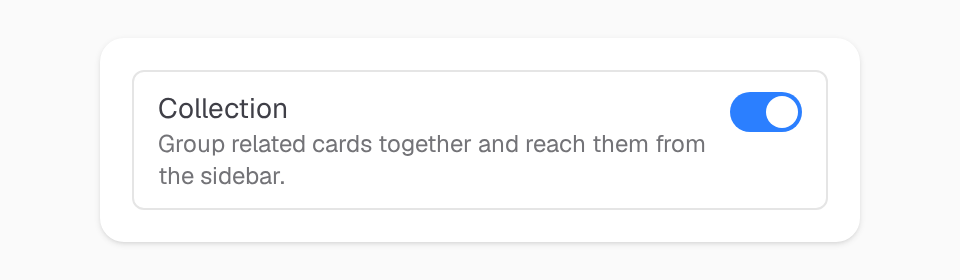
Turn on Collection
Open Preferences → Features and turn on Collection.
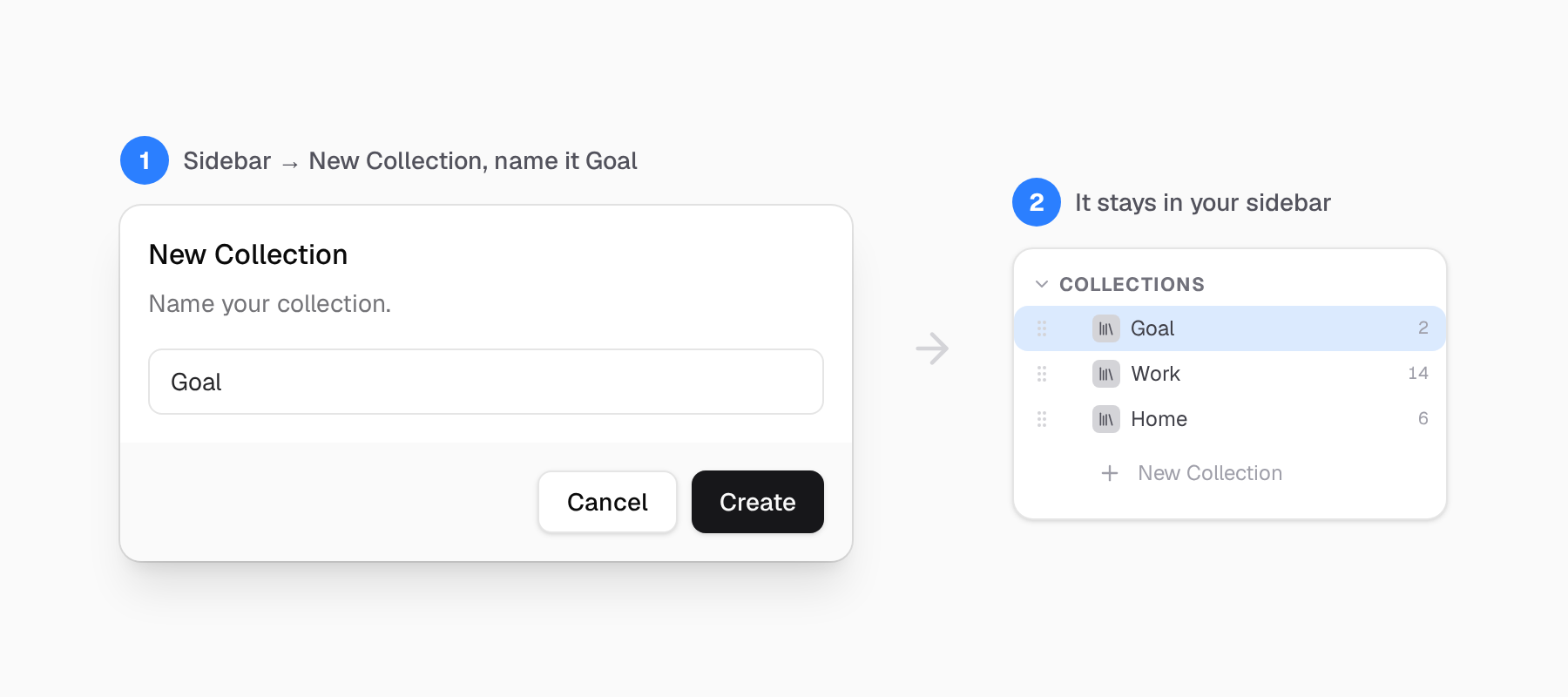
Create a Goal collection
In the sidebar, click New Collection and call it Goal. Add one card for each goal, with a target to track.
Step 2
Attach a Challenge
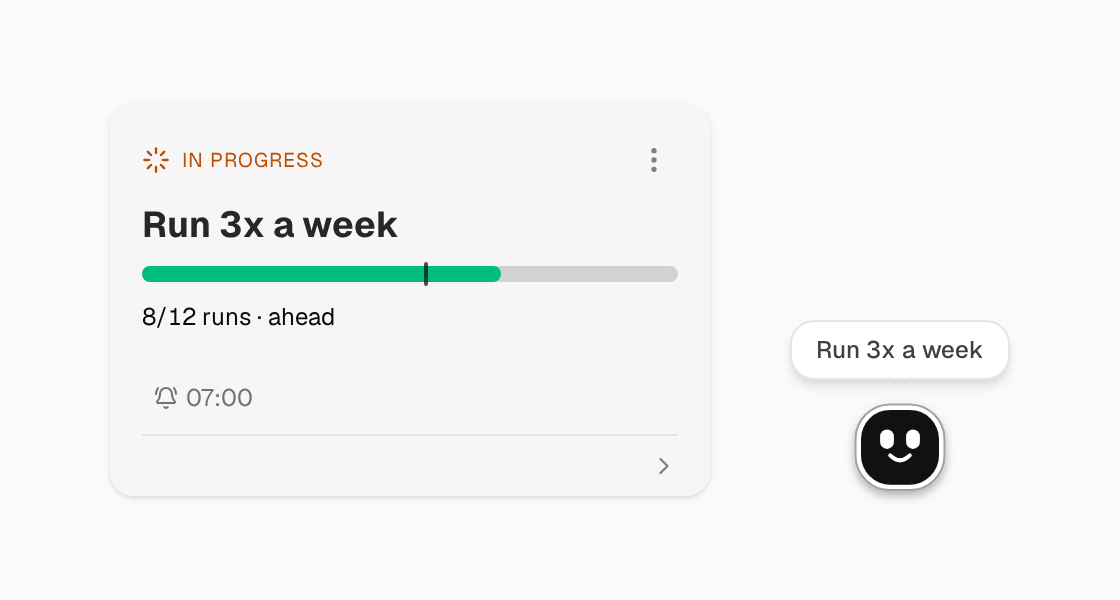
A challenge has a number to reach and an end date.
Create a challenge
For example: run 3 times a week for 30 days. Its bar shows how much you did, and how much of the time has passed.
Set the days
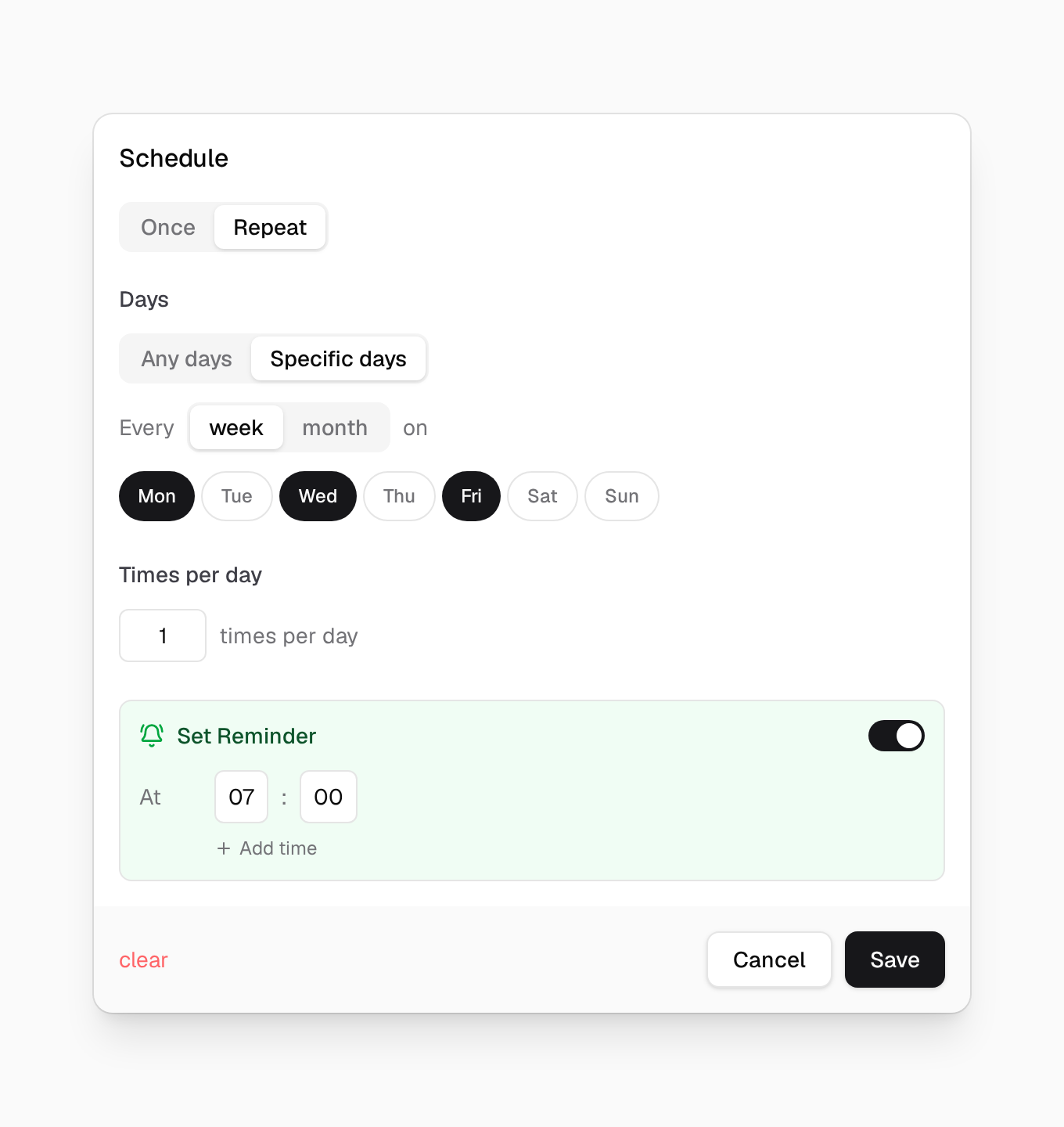
Open the card menu and choose Schedule → Repeat & Reminder. Pick the days. On those days, the challenge shows up, and its bot reminds you.
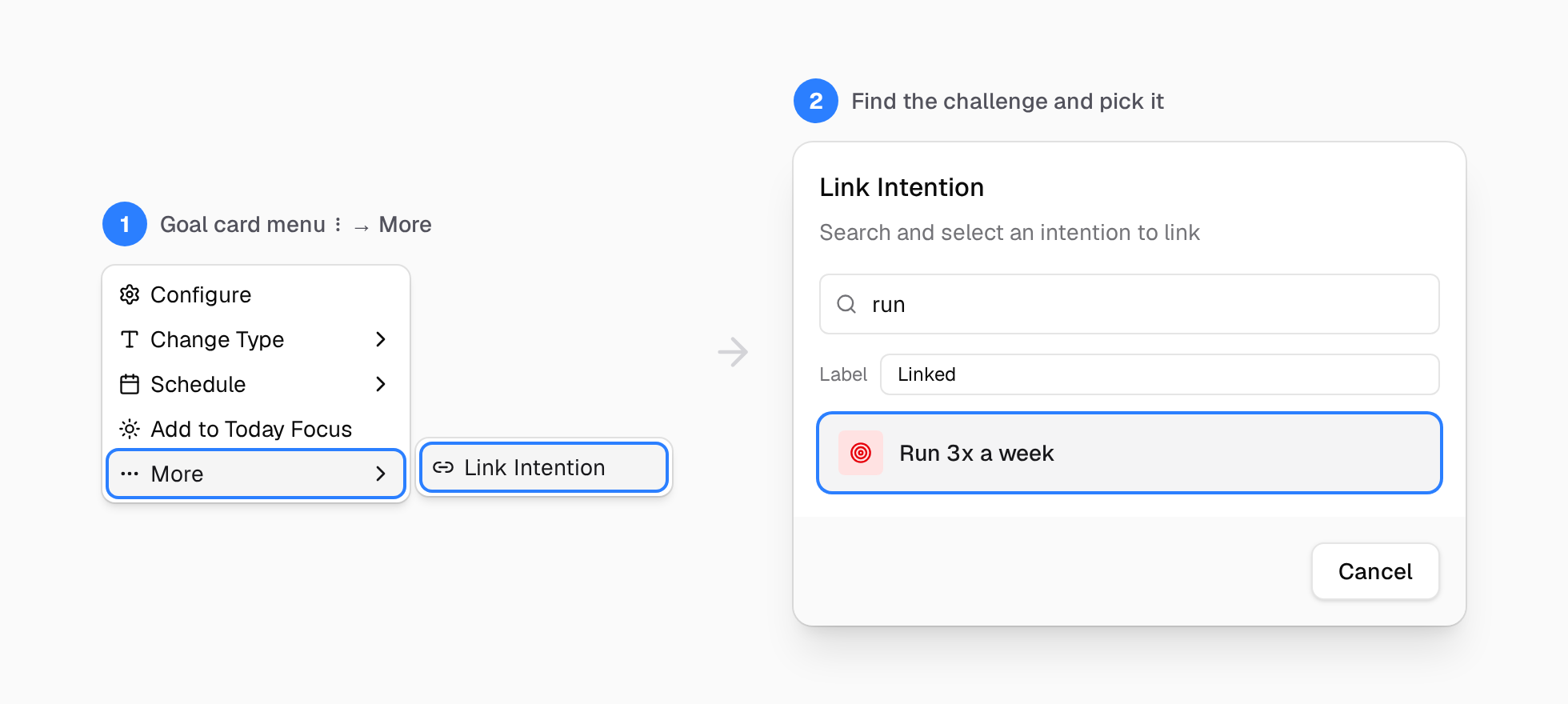
Link it to the goal
Open the goal's menu and choose More → Link Intention. The goal now shows its challenges and their progress.
Step 3
Is It Moving?
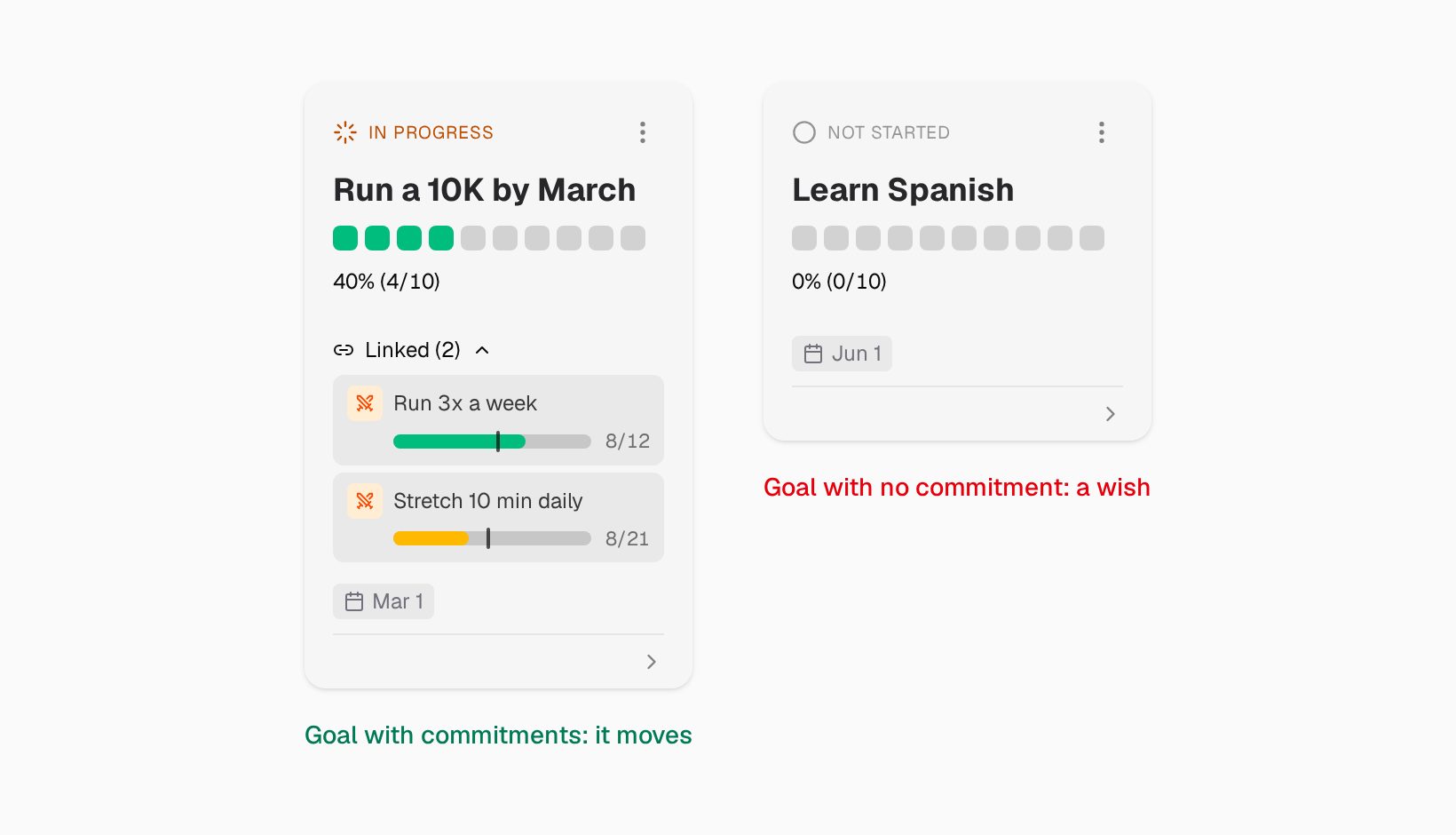
One look at the goal tells you.
Goal or wish
A goal with a challenge is moving. A goal without one is only a wish. Add a challenge, or let it go.
Other paths
Focus with Today
The classic way: plan the day, then work through it in focus sessions.
See the stepsFocus with Things
A short list of what you are doing now, and a timer for the time, not for one task.
See the stepsKeep a Habit
A little bot reminds you, and gets upset when you skip.
See the stepsRemember What Is Coming
Reminders and events that find you, even when the app is closed.
See the stepsReady to Start?
Pick one path. Try it for a week.
30-day free trial. No credit card required.