You Had a Goal Last Month. Do You Remember It?
Quick question. What was your main goal on the first day of last month?
Not the tasks you did. Not the meetings. The goal. The thing you were sure you would push forward this time.
If you needed a few seconds to remember, you are not alone. Many people cannot answer at all. That is normal, and you can fix it.
Where goals go
You set a goal with a lot of energy. You write it in a notes app, a journal, or at the top of your todo list. For a week, you think about it every day.
Then new things come in. A deadline at work. A message you must answer. A bill. Each new task goes on the list, and each one pushes the goal a little further down. Urgent things always win against important things, because urgent things shout and important things wait quietly.
After three weeks, the goal is still written down somewhere. You just never see it.
The goal did not die. It got buried.
The two real reasons goals disappear
Reason 1: you cannot see it. Out of sight, out of mind. Motivation is high in the first week and then it drops. That is how motivation works. Something you see every day does not need motivation to stay in your mind. Something you have to go and look for does.
Reason 2: it has no next action. "Get fit" does not tell you what to do on Tuesday at 7 AM. "Learn Spanish" does not tell you what to open after dinner. A goal with no commitment cannot move, even if you look at it every day. You see it, you feel a bit guilty, and you move on.
To keep a goal alive, you must fix both problems.
Goal and Challenge: a simple system
Split every goal into two parts:
- The Goal is the result you want. For example: "Run a 10K by March."
- The Challenge is the commitment that moves the goal, with an end date. For example: "Run 3 times a week for 30 days."
Then link them together. Now you can check every goal with one question:
Does this goal have a commitment?
If yes, the goal is moving. If no, it is only a wish. Add a challenge to it, or let it go.
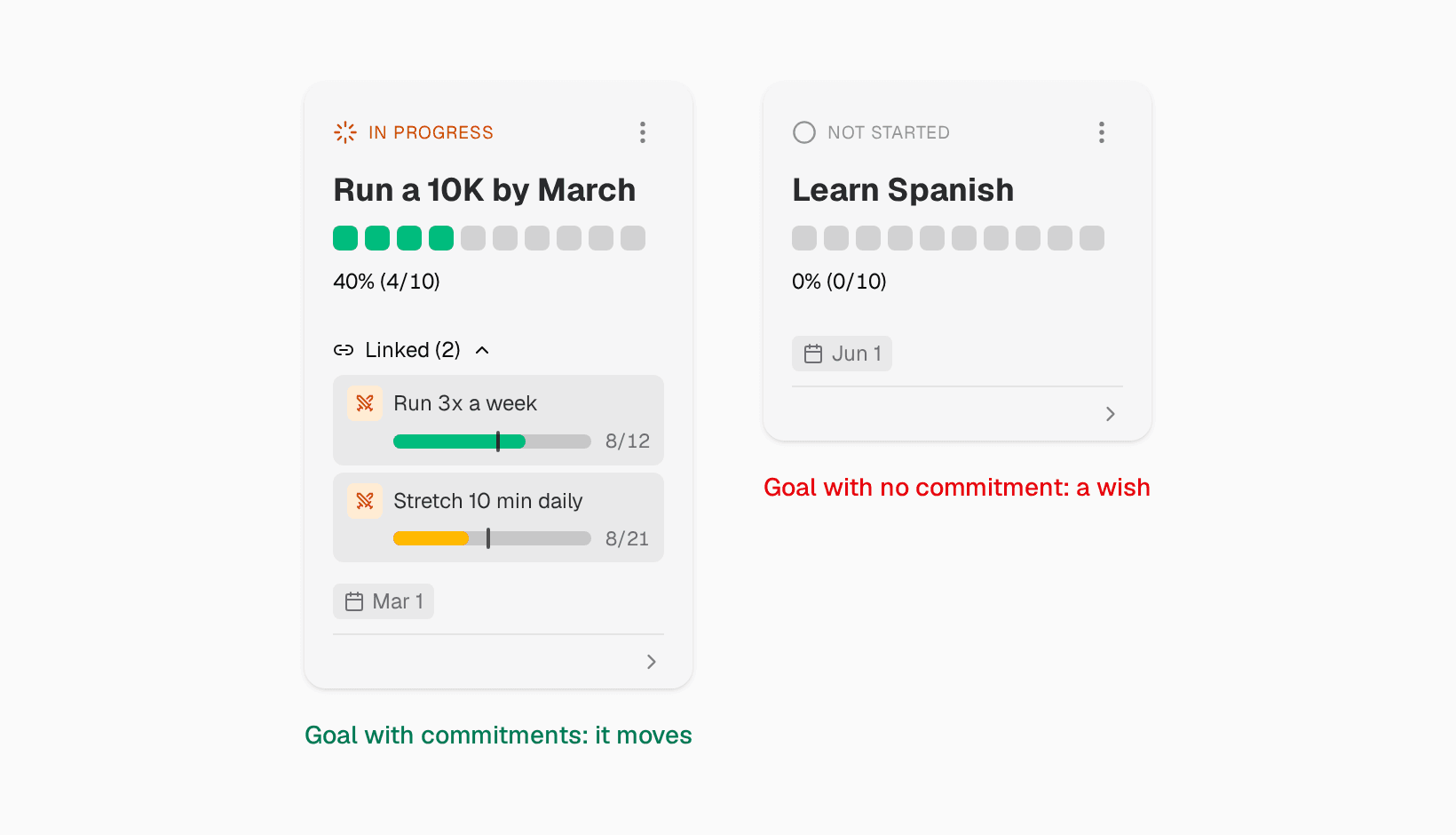
Why a challenge and not a habit that runs forever? Because a challenge has an end. "Run 3 times a week for 30 days" is small enough to start today. When it ends, you look at the goal again and start the next challenge. Thirty days is easy to commit to. "Forever" is not.
One more rule: keep fewer goals. You can keep three goals in view. You cannot keep fifteen. If everything is a goal, nothing is.
How to set it up in Clarity
Clarity is built for people who want to focus on less. Here is how to set up the Goal and Challenge system, step by step.
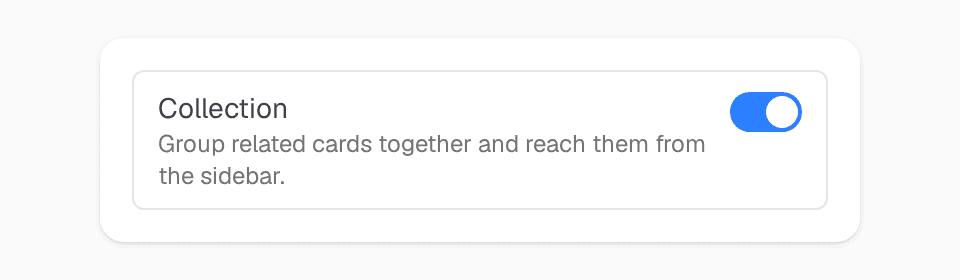
1. Turn on Collection
Open Preferences → Features and turn on Collection. It is off by default.
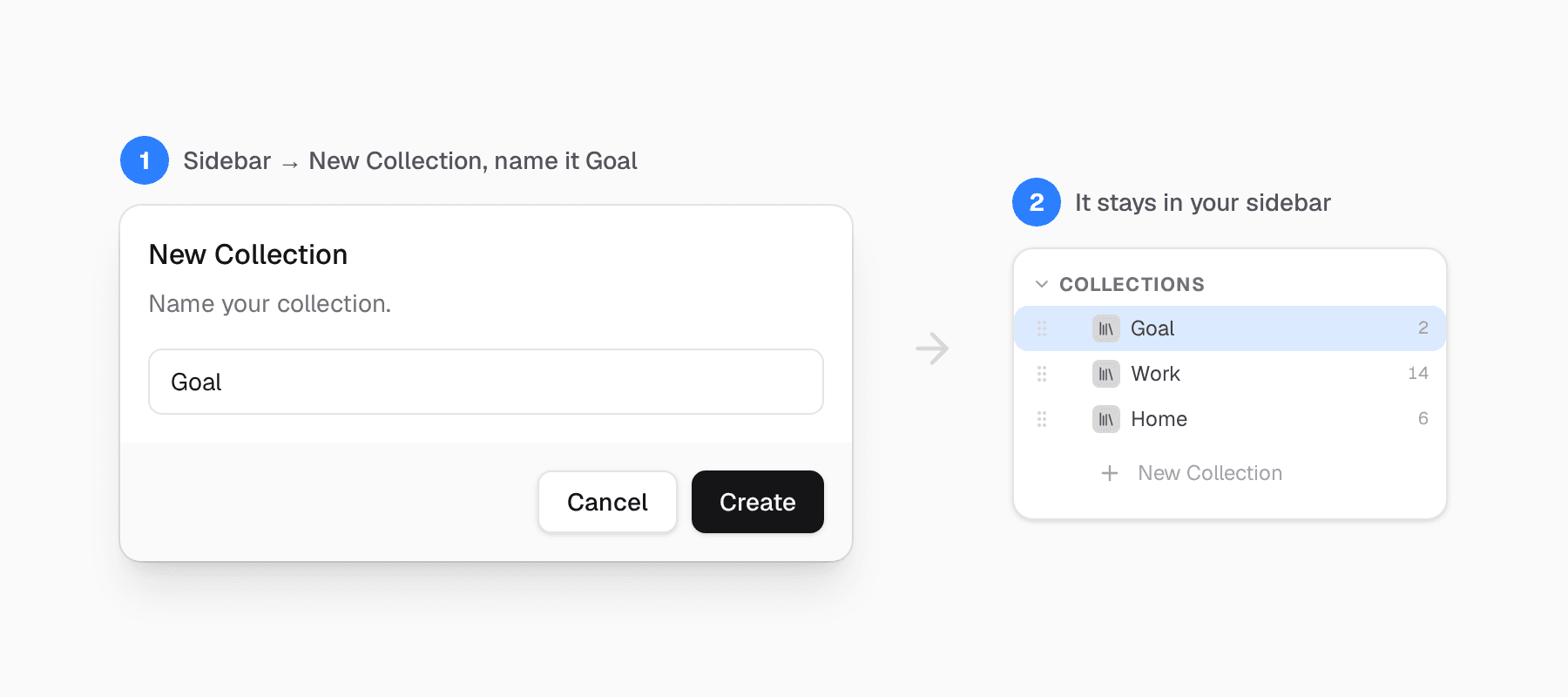
2. Create a "Goal" collection
In the sidebar, click New Collection and call it Goal. It shows in your sidebar, so you see it every time you open the app. This fixes reason 1: your goals have their own place, away from daily tasks.
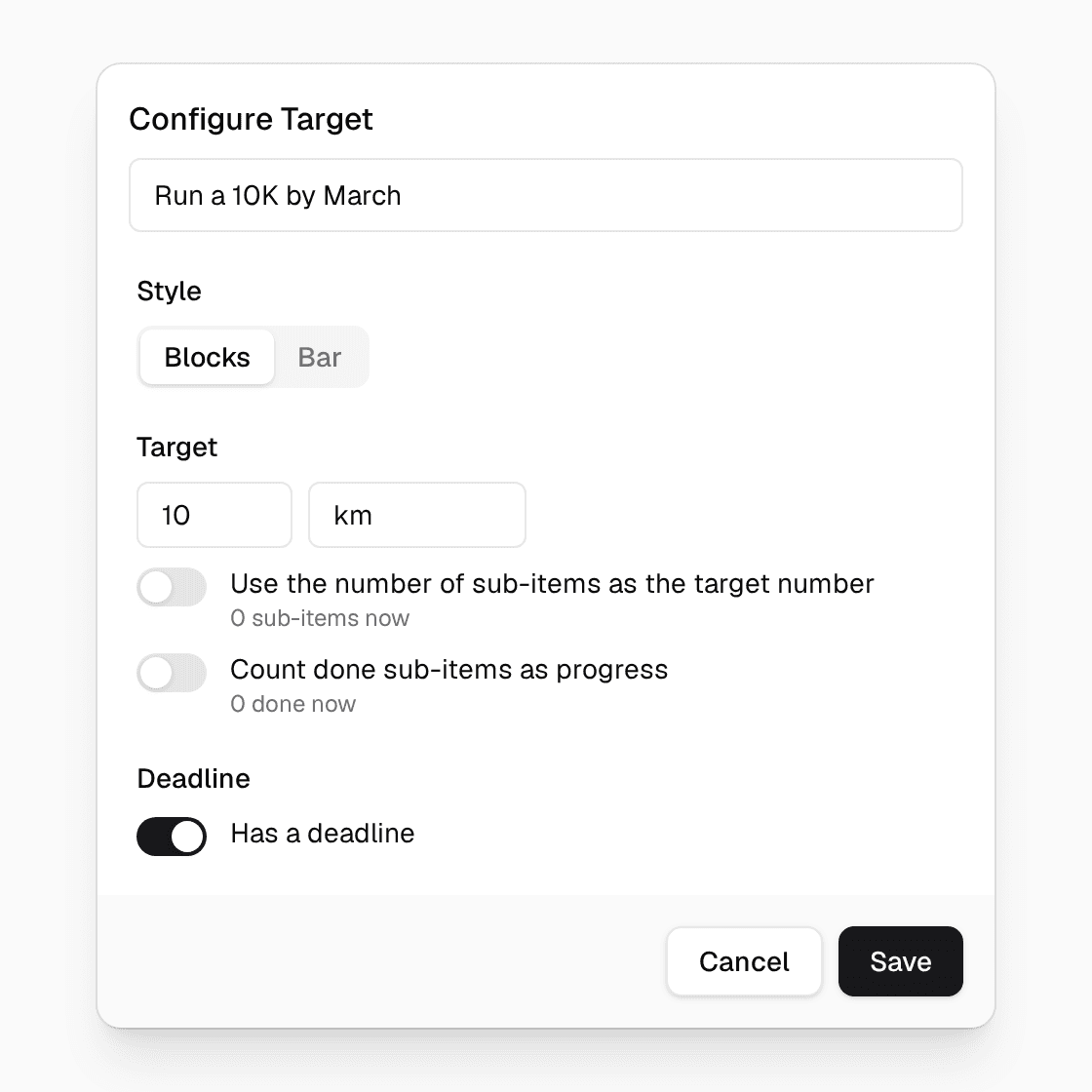
3. Add your goal with a tracker
Add a card for each goal, and give it a target. "Run a 10K by March" can track kilometres, from 0 to 10. Each time you run further, update the number. Now you see progress, not only the goal.
4. Create a Challenge
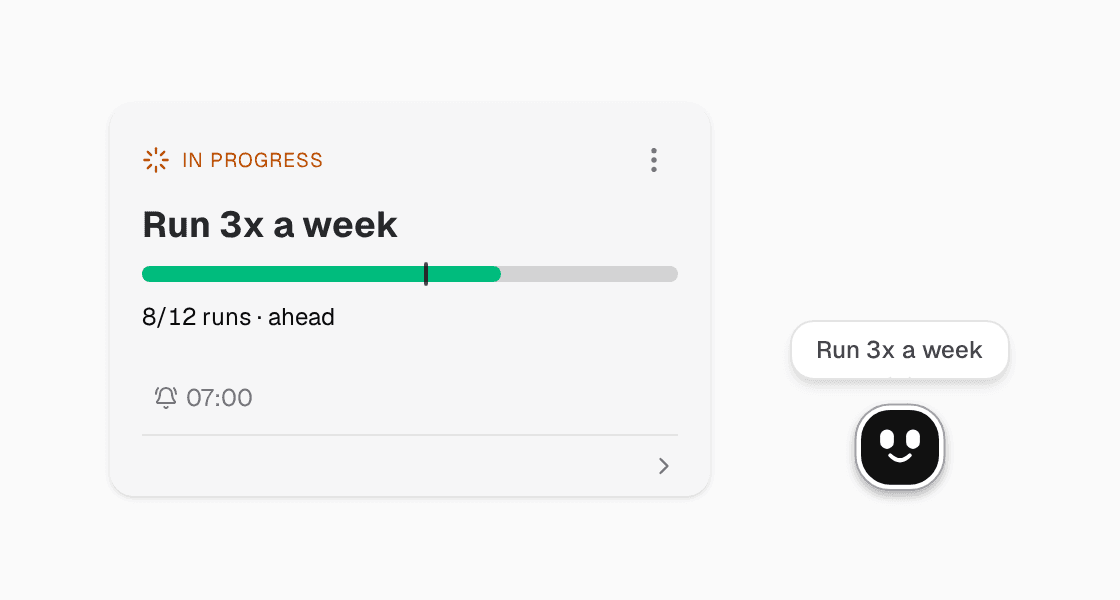
Create a Challenge card for the commitment. A challenge has a number to reach and an end date. Its bar shows two things: the fill is how much you have done, and the small mark is how much of the time has passed. If the fill is past the mark, you are ahead.
5. Set the days
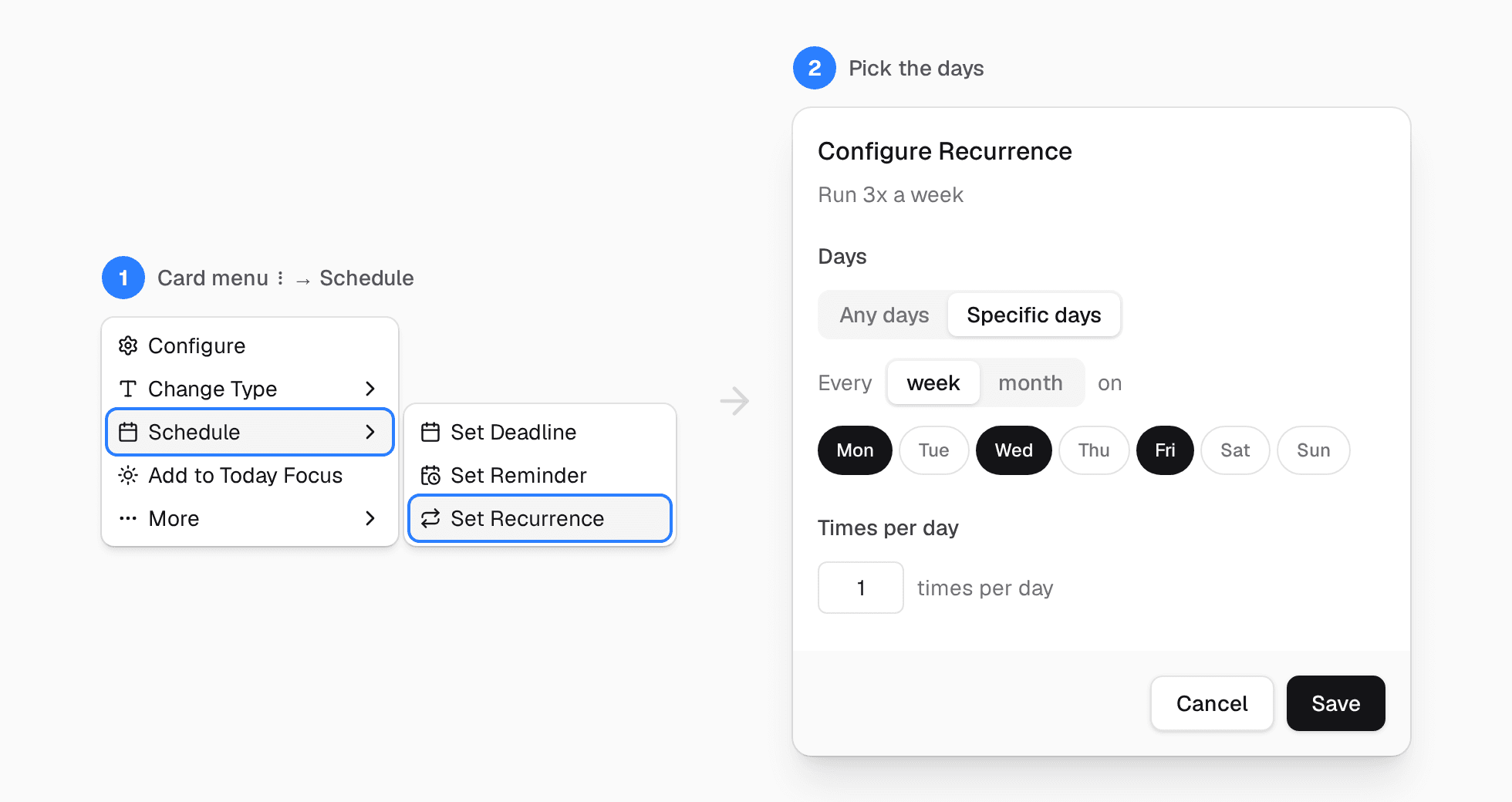
Open the challenge card menu and choose Schedule → Repeat & Reminder. Pick the days, for example Monday, Wednesday and Friday. On those days, it shows on your Today page. You do not need to remember. It is already there.
6. Link the challenge to the goal
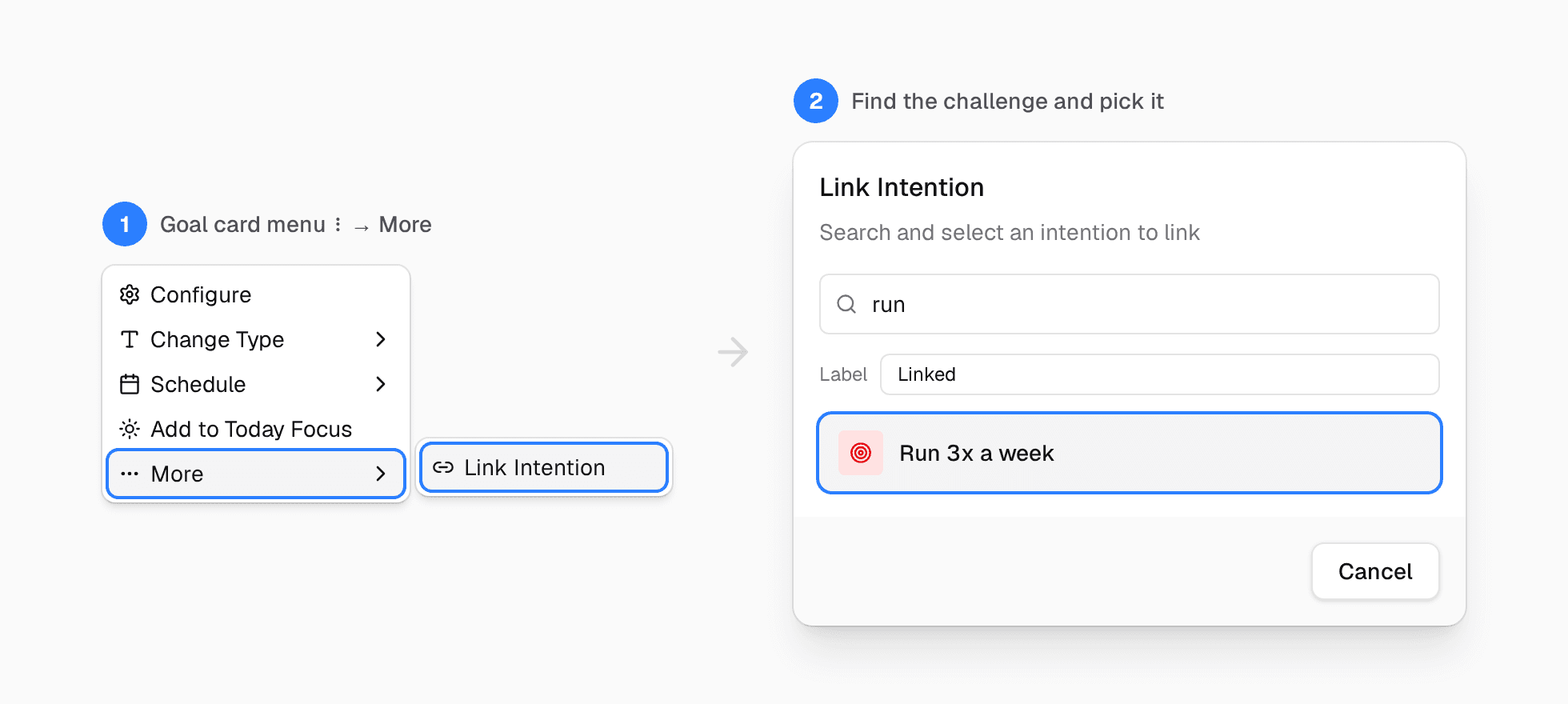
Open the goal card menu and choose More → Link Intention. Search for the challenge and pick it. The goal card now lists its linked challenges, each with its own progress bar. One look tells you if the goal is moving. This fixes reason 2.
A goal can have more than one challenge. A fitness goal can have "Run 3x a week" and "Stretch 10 min daily" at the same time.
7. Let the bot remind you
When the challenge is due, a small bot appears in the corner of the screen. If you ignore it, it does not go away. It gets annoyed after 5 minutes, angry after 10, and furious after 15. When you act, it is proud of you.
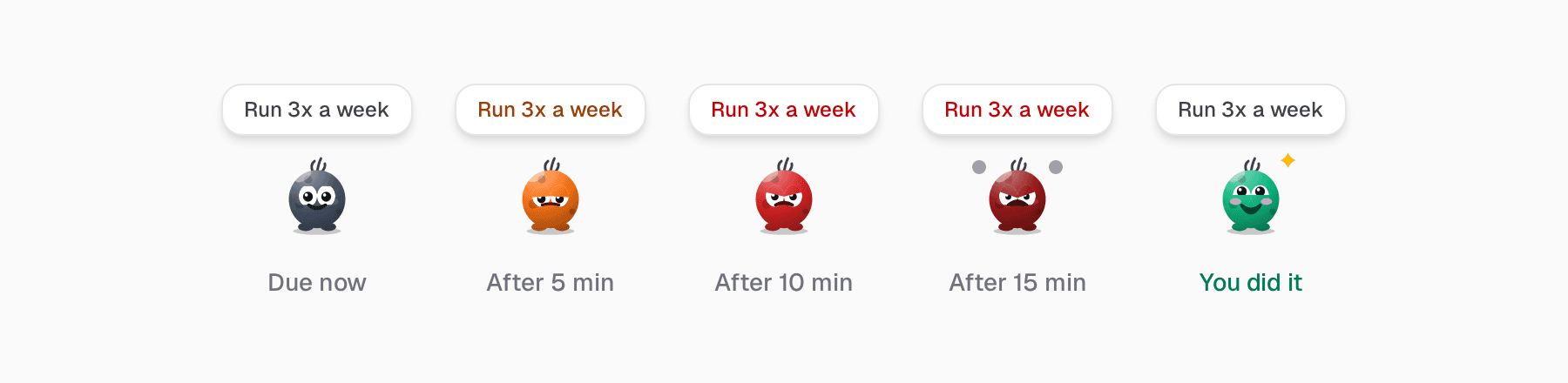
It sounds silly. It works. It is much harder to ignore a little face that is clearly upset with you than a plain notification.
Next month, you will remember
Go back to the question at the start. What was your main goal last month?
Next month, you will answer in one second. You will also know what you did for it this week, because the challenge shows it.
Start small today: pick one goal. Link one challenge to it. Set the days.
Try Clarity free. Thirty-day trial, no credit card required.